
Secure Your New Apple Device: 5 Essential Privacy and Security Settings to Configure Right Now
Many of you may find a new Apple iPhone under the tree this year. However, Apple devices often come with default settings that prioritize convenience over privacy. Let’s take a closer look at some essential security and privacy changes you should make to ensure your device is as safe as possible.
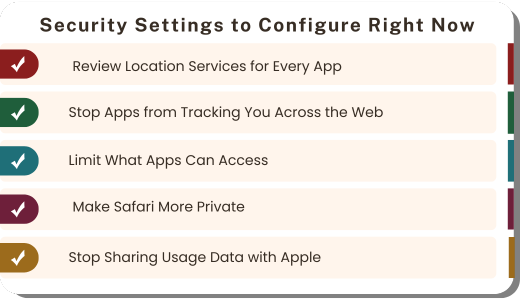
1. Review Location Services for Every App
Why this matters: Apps often request “Always” access to your location, which means they track you 24/7, even when you’re not using them. This drains your battery and shares your movements with companies.
How to fix it:
Open Settings > Privacy & Security > Location Services
Scroll through each app and tap to review its access
Change apps from “Always” to “While Using the App” or “Never”
Most apps like games, shopping apps, and social media don’t need constant location access
Pro tip: Scroll to the bottom and tap “System Services.” Disable “Significant Locations and Routes” and “iPhone Analytics” to prevent Apple from tracking your location for analytics.
2. Stop Apps from Tracking You Across the Web
Why this matters: Companies build detailed profiles about you by tracking your activity across different apps and websites. This information is sold to advertisers and data brokers.
How to fix it:
Go to Settings > Privacy & Security > Tracking
Make sure “Allow Apps to Request to Track” is turned OFF
Then go to Settings > Privacy & Security > Apple Advertising
Turn off “Personalized Ads”
This simple change blocks apps from following you around the internet and prevents targeted advertising based on your behavior.
3. Limit What Apps Can Access (Camera, Microphone, Photos, Contacts)
Why this matters: Many apps request access to your camera, microphone, photos, and contacts even when they don’t need them. This creates unnecessary privacy risks.
How to fix it:
Go to Settings > Privacy & Security
Tap through each category: Camera, Microphone, Photos, Contacts
Review which apps have access and remove permission for any that don’t truly need it
For Photos, change most apps from “Full Access” to “Limited Access – Selected Photos”
Ask yourself: Does this shopping app really need access to my microphone? Does this game need all my photos? If not, remove the permission.
4. Make Safari More Private
Why this matters: Your web browser knows everything you do online. Default browser settings often allow websites to track you across the internet.
How to fix it:
Open Settings > Apps > Safari
Ensure “Prevent Cross-Site Tracking” is enabled (it should be on by default)
Enable “Hide IP Address” and set it to “From Trackers”
Make sure “Block Pop-ups” and “Fraudulent Website Warning” are both on
These settings make it much harder for websites to follow you around and build a profile of your browsing habits.
5. Stop Sharing Usage Data with Apple
Why this matters: By default, your iPhone sends detailed information about how you use your device back to Apple. While this helps them improve their products, it means Apple is collecting data about your daily activities.
How to fix it:
Go to Settings > Privacy & Security > Analytics & Improvements
Turn off “Share iPhone Analytics”
Turn off “Share iCloud Analytics”
Turn off “Improve Siri & Dictation”
Bonus iPhone security tips:
Go to Settings > Face ID & Passcode and in the section “Allow Access When Locked” turn off “Today View and Search,” “Notification Center,” and “Reply with Message.” This prevents someone from accessing your information without unlocking your phone.
Go to Settings > Face ID & Password and enable Stolen Device Protection. Stolen Device Protection adds extra security to your iPhone by requiring biometric authentication (Face ID or Touch ID) for certain actions when your device is away from familiar locations, helping to prevent unauthorized access if your phone is stolen. It also includes a security delay for critical operations, giving you time to secure your account.
What about that new Android phone?
Hey Matt, I just received a new Android phone, can they be secured? Sure, devices running the Android OS are safe, but Android is an open-source mobile OS that allows device manufacturers to customize it as needed. Settings menus vary across brands such as Google, Samsung, OnePlus, and other Android manufacturers.
Android users can activate the same security settings, but you’ll need to explore a bit to locate the options. A quick Google search or asking AI tools like ChatGPT can help simplify that process.
Taking 15-20 minutes to adjust these settings makes a significant difference in your privacy and security. Think of it as protecting your investment and your personal information at the same time.
Enjoy your new device, and have a safe and secure new year!
Share:
Disclosures
The material on this site was created for educational purposes. It is not intended to be and should not be treated as legal, tax, investment, accounting, or other professional advice.
Securities and Insurance Products:
NOT A DEPOSIT | NOT FDIC INSURED | NOT BANK GUARANTEED | NOT INSURED BY ANY FEDERAL GOVERNMENT AGENCY | MAY LOSE VALUE