
Online Banking Overview
Learn about logging in, navigating online banking, transfers, Zelle, and other everyday features.


Find answers to frequently asked questions about accessing digital banking, handling everyday banking tasks, protecting your account, and getting help when you need it.
Use the online banking enrollment page and follow the prompts. After you enroll, use the same username and password online and in the Mid Penn Bank mobile banking app.
Sign in to personal online banking from the Mid Penn Bank website. For mobile access, download or open the Mid Penn Bank mobile banking app and enter your personal online banking credentials. Watch Video.
Use the password recovery option on the login screen. If you still need help, call 1-866-642-7736.
No. Users may only access accounts they own. Do not share your username or password. Each owner should have their own online banking login. Never share your online banking credentials with anyone.
Yes. Call 1-866-642-7736 for help accessing available telephone banking services.
You can view balances, transaction history, debit card and ATM activity, and detailed account information. Eligible new accounts may appear automatically. Watch Video.
Select the transaction in your account activity to view the details available for that item.
Mid Penn Bank’s routing number is 031308807. You may need it for direct deposit, automatic payments, or certain transfers.
Open the Transfers link in personal online banking or the mobile banking app, choose eligible From and To accounts, enter the amount, and review the details before submitting. Watch Video.
Submit the secure form for Bill Pay in personal online banking to enroll. Once approved, you can use Bill Pay and Zelle.
You must enroll in Bill Pay if you do not already have this service enabled. Open Bill Pay in personal online banking or the mobile banking app. Add a payee, choose the payment date and amount, and review the details before scheduling the payment. Watch Video.
Open Bill Pay, select “Send Money with Zelle®,” accept the terms, enter an email address or U.S. mobile number, and verify it with the one-time code.
After you have enrolled Zelle®, send money only to people you know and trust. Confirm the recipient’s email address or U.S. mobile number before sending, as payments are usually delivered quickly and may not be reversible. Watch Video.
If you are enrolled, money goes to your designated account. If not, follow the payment notification and enroll with the email address or U.S. mobile number that received the payment. Watch Video.
Use External Transfers to move money between eligible Mid Penn Bank accounts that you own and accounts you own at other financial institutions. Watch Video.
Timing depends on the accounts, transfer type, processing schedule, and applicable limits. Review the delivery information before submitting.
Open Deposits, select “Deposit Check,” photograph the front and back of your endorsed check, choose an eligible account, enter the amount, and submit. Watch Video.
Sign the back and write “For Mobile Deposit Only at Mid Penn Bank.” Checks without this endorsement may be rejected.
After the deposit is accepted, write “DEPOSITED” across the front, store it securely for 30 days, and then shred it.
Eligibility, dollar limits, and funds availability may vary. Review the information in the mobile banking app or call 1-866-642-7736.
Card controls in the mobile banking app help you manage how and when your debit card is used. With card controls, you can turn your Mid Penn Bank debit card on or off as needed to further protect your card transactions. Watch Video.
Open your device’s supported wallet app and follow the prompts to add and verify an eligible card.
Secure Login may ask for a one-time security code to confirm your identity. Keep your contact phone numbers current.
Supported devices may allow biometric access. Availability depends on your device and the mobile banking app settings. Watch Video.
You can create alerts for available account activity and choose from the delivery options shown in personal online and mobile banking. Watch Video.
Do not share your username, password, account number, PIN, or security code in response to an unexpected call, email, or text. Mid Penn Bank will never request this information in unsolicited communication.
Use the password recovery option on the login screen. If that does not work, call 1-866-642-7736.
Contact Mid Penn Bank immediately at 1-866-642-7736.
Call 1-800-992-3808 and follow the prompts.
Contact Mid Penn Bank immediately at 1-866-642-7736.
Review the payment status and recipient information in personal online banking or the mobile banking app. If you still need help, call 1-866-642-7736.
Sign in to personal online banking and open the available statements or document section for the account you want to review.
In personal online banking, select Accounts then Statement Preference. Review and accept the eStatement Terms and Conditions, then update the delivery option for each desired account. Watch Video.
Call 1-866-642-7736 for assistance.
eStatements are convenient, more secure than mailed statements, and available sooner than paper statements.
Call 1-866-642-7736. Customer support is available Monday through Friday from 8 a.m. to midnight and Saturday and Sunday from 8:30 a.m. to 5 p.m.
Yes. Visit a Mid Penn Bank financial center for in-person assistance.
Learn about logging in, navigating online banking, transfers, Zelle, and other everyday features.
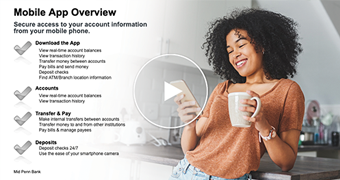
Explore deposits, Face ID, alerts, statement preferences, and other mobile banking features.

Learn how to use Bill Pay and related Zelle features.
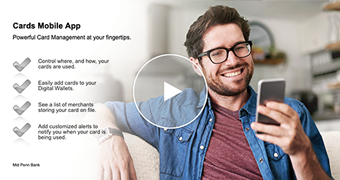
Learn how to manage debit card features and controls in the mobile banking app.

Learn how to access and manage card features through online banking.
Explore online banking features with an interactive desktop click-through.
Explore mobile banking features with an interactive mobile click-through.
Explore Bill Pay and Zelle features with an interactive desktop click-through.
Explore mobile card-management features with an interactive click-through.
Please be aware you are leaving Mid Penn Bank's web site. You are being redirected to a linked site (hereafter referred to as 'site') for your convenience. The content appearing on this site is third-party content. Mid Penn Bank is not responsible for providing or updating the information found on this site. This site is provided as an informational source only.
ProceedWe advise you not to email confidential information such as account number(s) or your social security number.
Proceed